Fully Automated Execution: Sit Back & Watch Us Fight the BULLS and BEARS
🧠 What is a 24/7 Cloud VPS?
A Virtual Private Server (VPS) is an ultra-fast, dedicated 24/7 virtual supercomputer running inside secure financial data centers. It allows your MetaTrader 5 robot to run continuously 24 hours a day, 5 days a week without needing your personal laptop turned on or connected to Wi-Fi.
❌ Manual Signals (Old Way)
• Must copy trades manually on phone
• Miss entries while sleeping or busy
• Laptop must stay on 24/7
• Execution delays & missed profits
✅ BreathwealthFX Cloud (Automated)
• 100% Fully Automated Cloud Execution
• Operates 24 Hours/Day continuously
• Laptop can be completely TURNED OFF
• Sub-1ms ultra-fast execution speed
🥊 Sit Back & Watch Us Do the Job in the BULL & BEAR Battle
Unlike manual signal channels, BreathwealthFX is a complete 100% automated trading engine. Once connected to your account on our 24/7 Free Cloud VPS, you don't need to analyze charts or manage orders. You simply sit back, relax, and watch as our proprietary quantitative algorithm and Risk Control Engine navigate the continuous market battle between the BULLS and the BEARS.
💡 THE #1 TRADER OBJECTION SOLVED: TURN YOUR LAPTOP OFF 24/7!
The two biggest questions traders ask are: "Do I have to leave my personal laptop on 24 hours a day?" OR "Do I have to pay $20–$30/month for server hosting on top of my robot?"
ANSWER: ZERO HOSTING FEES! Every active subscriber unlocks a 100% Free 24/7 Cloud Server ($0/month for 12 Months). Set up once, turn your laptop completely OFF, and sit back as our algorithm manages trades in the cloud!
🎁 Exclusive Bonus: 1-Year Free 24/7 Cloud Server ($0/month)
Every active BreathwealthFX subscriber gets exclusive access to a 100% Free 24/7 Cloud Server ($0/month for 12 Months). This dedicated 24/7 Windows Cloud Desktop runs your MetaTrader 5 robot continuously without needing your personal laptop turned on or connected to Wi-Fi.
1-Year Free 24/7 Cloud Server & Full Setup Guide (Subscriber Locked)
The 1-Year Free 24/7 Cloud Desktop ($0/month for 12 Months) and 1-click step-by-step setup guide are an exclusive bonus included with your BreathwealthFX Robot Subscription.
✨ What you unlock immediately after subscribing:
100% Free 24/7 Cloud Desktop ($0/month for 12 Months)
Full step-by-step visual setup guide with clear interface screenshots
Activate Your 1-Year Free Cloud Server ($0/month)
After subscribing to Starter or Pro Control, log in to your Client Personal Area to access your 1-Year Free 24/7 Cloud Desktop.
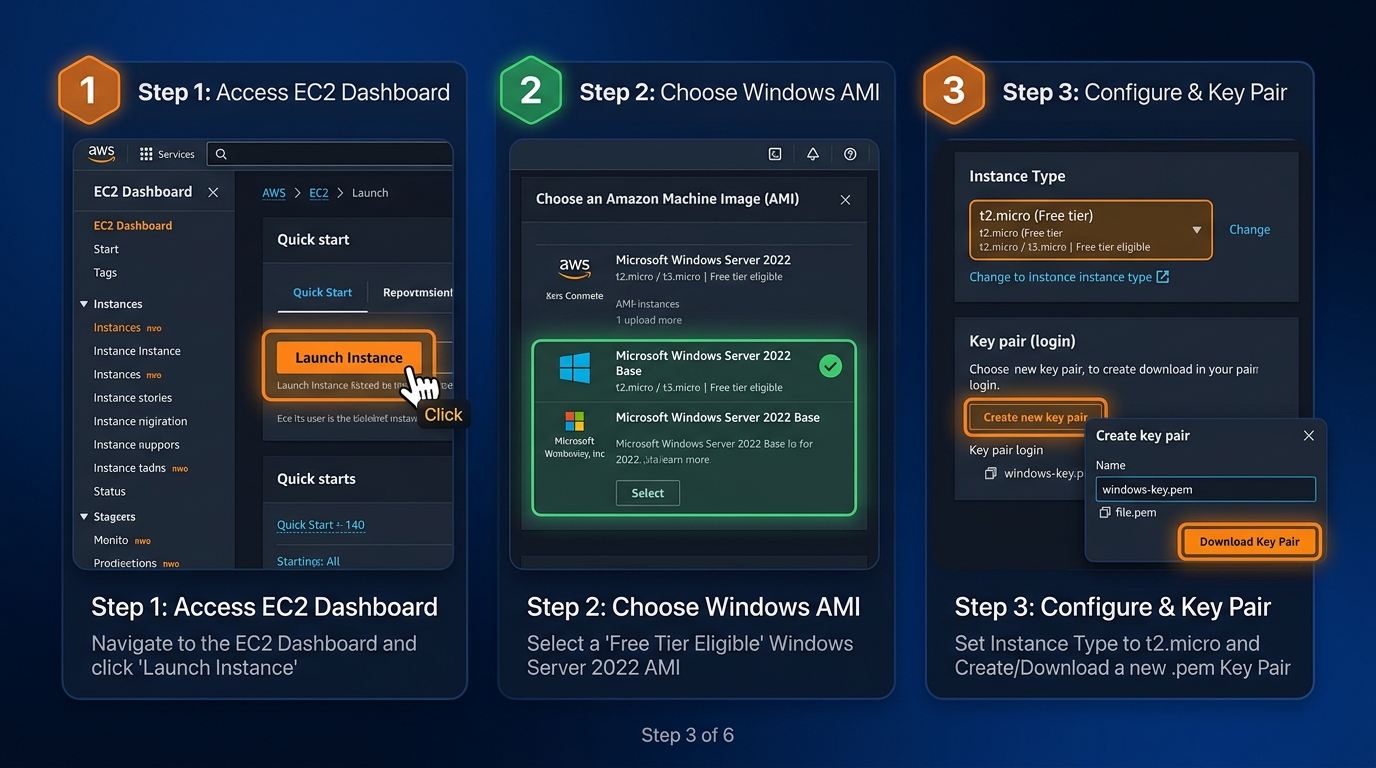
1. Sign in to your cloud server account console.
2. Go to EC2 Services ➔ Launch Instance.
3. Select Microsoft Windows Server 2022 Base (Free Tier Eligible).
4. Choose instance type t2.micro / t3.micro, generate your Key Pair file (`.pem`), and launch your Cloud Desktop.
Connect via Remote Desktop (RDP) from Your Laptop or Mobile
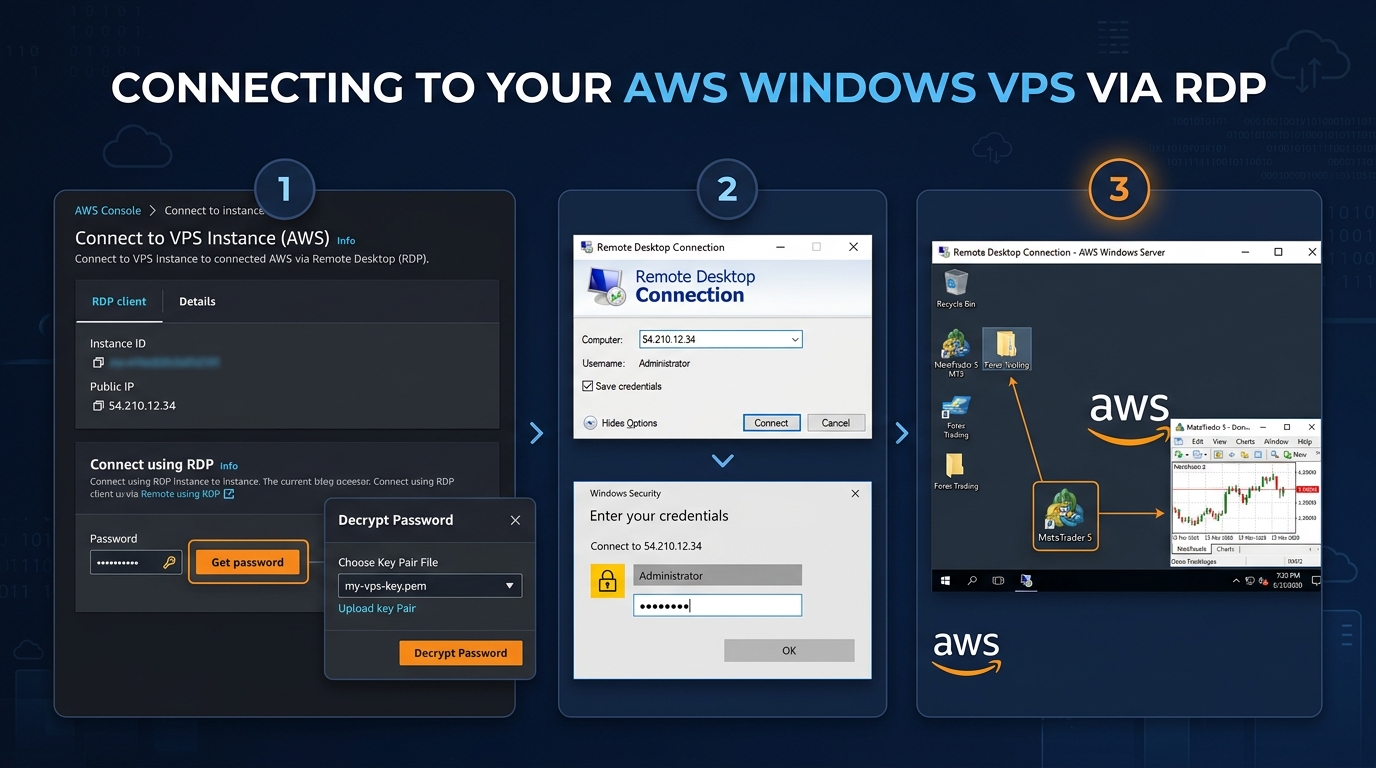
Once your instance is running, click Connect ➔ RDP client ➔ Get password (upload your key pair file to decrypt your Administrator password).
• Windows Laptop: Press Win + R, type mstsc, and press Enter. Enter your Public Server IP, Username (Administrator), and Password.
• Mac / iPhone / Android: Download Microsoft Remote Desktop app from the App Store / Play Store, add a new PC with your Server IP address, Username, and Password.
Download & Install MT5 on Your AWS Cloud Desktop
Inside your new AWS Windows Cloud Desktop, open the web browser and click "Download MetaTrader 5 (MT5)" above (or visit metatrader5.com/en/download). Run mt5setup.exe to install MT5 and log into your trading broker account.
Enable WebRequest for BreathwealthFX (Visual Setup)
Inside MT5, open the options window (Ctrl + O) and go to Expert Advisors:
Bind Your MT5 Account & Paste License Key (3-Step Binding)
Follow this 3-step sequence to complete your automated trading setup:
🔗 3-Step MT5 Account Binding Quick-Guide
STEP 1
Find Your MT5 Account #
Look at the top title bar of your MT5 window for your 7 to 9-digit account number (e.g., 47739087).
STEP 2
Save Number in Personal Area
In your Client Area, go to My Robot ➔ Linked MT5 Account, type your account number, and click Save Binding.
STEP 3
Paste License Key in EA
Drag BreathwealthFX.ex5 onto your chart, open the Inputs tab, paste your License Key, and click OK!
Turn On Algo Trading (Visual Status Guide)
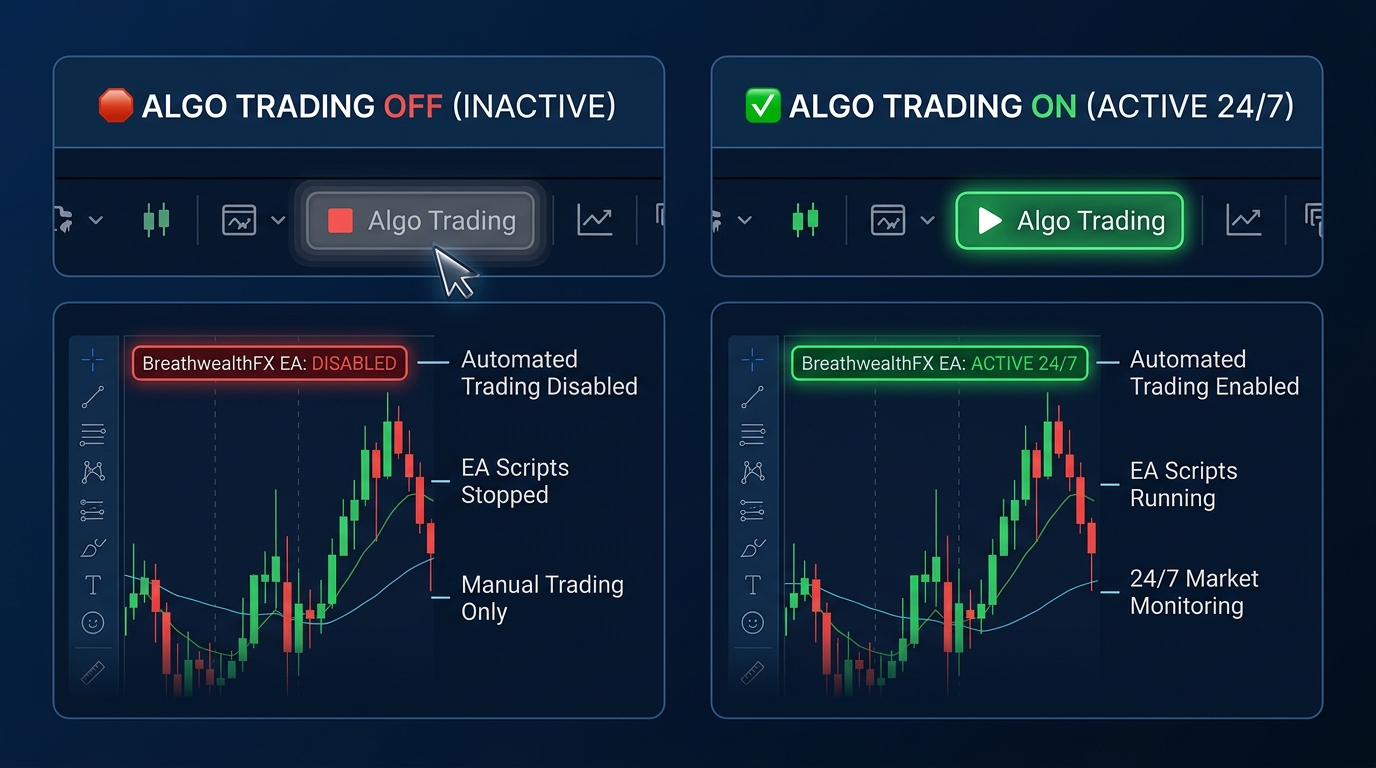
Click the Algo Trading button at the top toolbar of MT5 until it turns GREEN. Your robot is now active 24/7 in the cloud!
💡 Pro-Tips & Client Troubleshooting FAQ
❓ How do I close Remote Desktop without stopping MT5?
Simply click the X (Close) button at the top of the Remote Desktop bar or close the app on your phone. Do NOT click "Shut Down" inside Windows! Closing RDP leaves MT5 running 24/7 in the cloud.
📱 How do I monitor my trades on my phone?
Download MetaTrader 5 on iPhone or Android from your App Store. Log in to your broker account to view live positions and profit stats anywhere in the world.
🍿 Sit Back, Relax & Monitor From Anywhere!
Once Algo Trading is green, your job is done! You can shut down your personal computer or close the Remote Desktop app. The BreathwealthFX robot runs 24/7 in the cloud. Check your MT5 phone app anytime to watch the trades and profits roll in!